Shaw, Telus SMTP servers: how to send e-mail when port 25 is blocked
First published on June 27, 2009
In an effort to help limit spam, many Internet service providers block all traffic to port 25 unless that traffic is directed at one of the service providers’ servers. What this means to you is that if you use an e-mail client (as opposed to webmail) such as Outlook or Thunderbird, and are travelling and/or connected to a different network than you’re used to, you might not be able to send e-mail.
In Thunderbird, you will see a error message similar to this:
“Sending of message failed. The message could not be sent because connecting to SMTP server smtp.gmail.com failed. The server may be unavailable or is refusing SMTP connections.”
For the purposes of this post, think of an “SMTP server” as the outbound mail server.
There are two relatively simple ways around this.
You can configure your mail client to use your default SMTP server but on a different port. To do this, you’ll have to know what alternative ports are available, and even in that case, the service provider might block that port too.
Or, you can configure your mail client to use the service provider’s SMTP server. To do this in Thunderbird, first click the Tools menu, and select the Account Settings option. The left menu on the resulting window should show a list of your configured accounts, and at the very bottom of that menu there should be an “Outgoing Server (SMTP)” option. From there, you can add a new SMTP server:
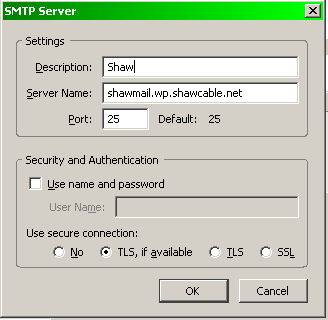
Usually you can do a Google search for “Telus SMTP server” (replacing “Telus” with the name of the Internet service provider that you are currently connected to). If you’re connected to a public network but don’t know what service provider you’re using, try visiting a site such as this one. Here’s a list of SMTP servers for the various networks that I’ve had to connect to recently:
| Service provider | SMTP server |
|---|---|
| Telus | mail.telus.net |
| Shaw | shawmail.wp.shawcable.net (replace “wp” with a two-letter code representing your nearest city) |
| Lightspeed | mail.lightspeed.ca |
| AT&T | smtp1.attglobal.net |
| DCCNet | mail.dccnet.com |
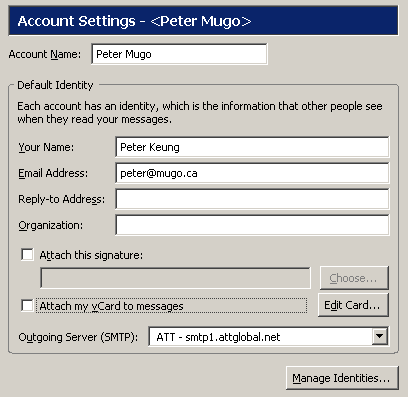
Once you’ve added a new SMTP server, set your mail client to use that one. In the left menu for the Account Settings window in Thunderbird, click on your account, then specify the SMTP server that you just added.
 Facebook
 Twitter
 Email this
 keung.biz. Hire my web consulting services at
  Follow us on Twitter


June 28th, 2009 at 12:10 pm
Jim Fletcher says:
Hi Peter – This approach will certainly work, but is a royal POA when you arrive at your Toronto hotel at midnight & need to go looking for the local ISP settings, change them, change them back when you get home, etc. There is a MUCH more elegant solution via www.loapowertools.com – They put a small virtual server on your laptop, so you set your Outgoing Server permanently to "localhost". From there, your "local" server routes email through Loa’s server (with full encryption) to ultimate destination. Works flawlessly anywhere in the world that I have been.
Cheers
Jim
Reply from Peter: Nice tip and nice approach. The plans look reasonable, and there’s a free version too.
July 3rd, 2009 at 3:54 pm
Springfield Harrison says:
Hello:
My Eudora has been set this way for ages but I can only connect through a Shaw connection, not Telus.
Is there some other option to tweak?
I’ll try the other service mentioned above.
TU, cheers . . . . .
Reply from Peter: I’m not completely sure what you’re referring to. Remember that you wouldn’t be able to use the Telus SMTP server when you’re on a Telus connection.
December 9th, 2009 at 10:35 am
dwhs says:
We just posted a blog on this here http://www.dwhs.net/blog/2009/12/email-port-25-26-587/
I linked to your tutorial because it shows how to change a port in a SMTP setting.
Thanks,
Charles
March 25th, 2010 at 10:41 am
Catherine says:
Hello,
Tried everything and nothing worked. Then tried http://www.loapowertools.com and it did!
Love the trumpet.
July 3rd, 2010 at 10:57 am
Jeff says:
Some good advice here, thanks for posting it – I was able to get my Thunderbird working with Gmail as the SMTP server for outgoing mail, but of course anyone receiving emails sent this way were seeing them coming from my gmail account rather than my shawmail address. Tried the "loapowertools" Catherine linked to above me, and that works like a charm for me (and people receiving my emails see them as having come from my shaw address directly) — good stuff!
August 7th, 2010 at 7:47 am
Henry says:
I am retired and now do a lot of traveling throughout Canada and the USA. This year we might even go to the UK for a visit. I found that sending emails on my account would not work once I travelled outside of my area, so started investigating and looking for a solution. I found LOA PowerTools while doing a search and decided to try it, although it did not mention that it would work on windows 7, which I am using. So far I like what it does for me
– Thank you for LOA PowerTools
December 31st, 2010 at 7:06 pm
Amos says:
I have suffered greatly with this problem in hotels, conferences, and airports until I found http://www.loapowertools.com, which usually works like a charm. Not only that, when I had a configuration problem, they came back to me on client service almost immediately, and with good solutions. They have the most responsive and personalized technical help I’ve found on the web. I quickly went from the free version to the $4 a month version, which is quite sufficient for when I’m on the road.
Hooray for what the web and customer service should always be like.
February 24th, 2011 at 3:33 am
MSteven says:
There is an online test at http://port25.icannotconnect.com that can tell you if your ISP is blocking port 25.
June 13th, 2012 at 5:55 pm
dLight says:
Thanks again Peter and everyone. I will look into the LAOpowertool thingy.
Awesome!
Blessings
April 13th, 2013 at 6:52 pm
Terry says:
after all this time of struggling in hotels etc it really was this simple it works